

Before you begin
Make sure you have:- A z/OS mainframe reachable from your laptop. TN3270 is required; FTP is optional but recommended — without it, the datasets browser, jobs browser, builds, and most agent tools stay disabled.
- A TSO user ID and password for FTP, if you’re using it. You can also add this later from Settings → FTP.
- An Anthropic API key (get one)
Step 1: Install Hopper
Download Hopper from the download page, run the installer, and launch the app.Step 2: Connect to your mainframe
The connection modal opens automatically on first launch.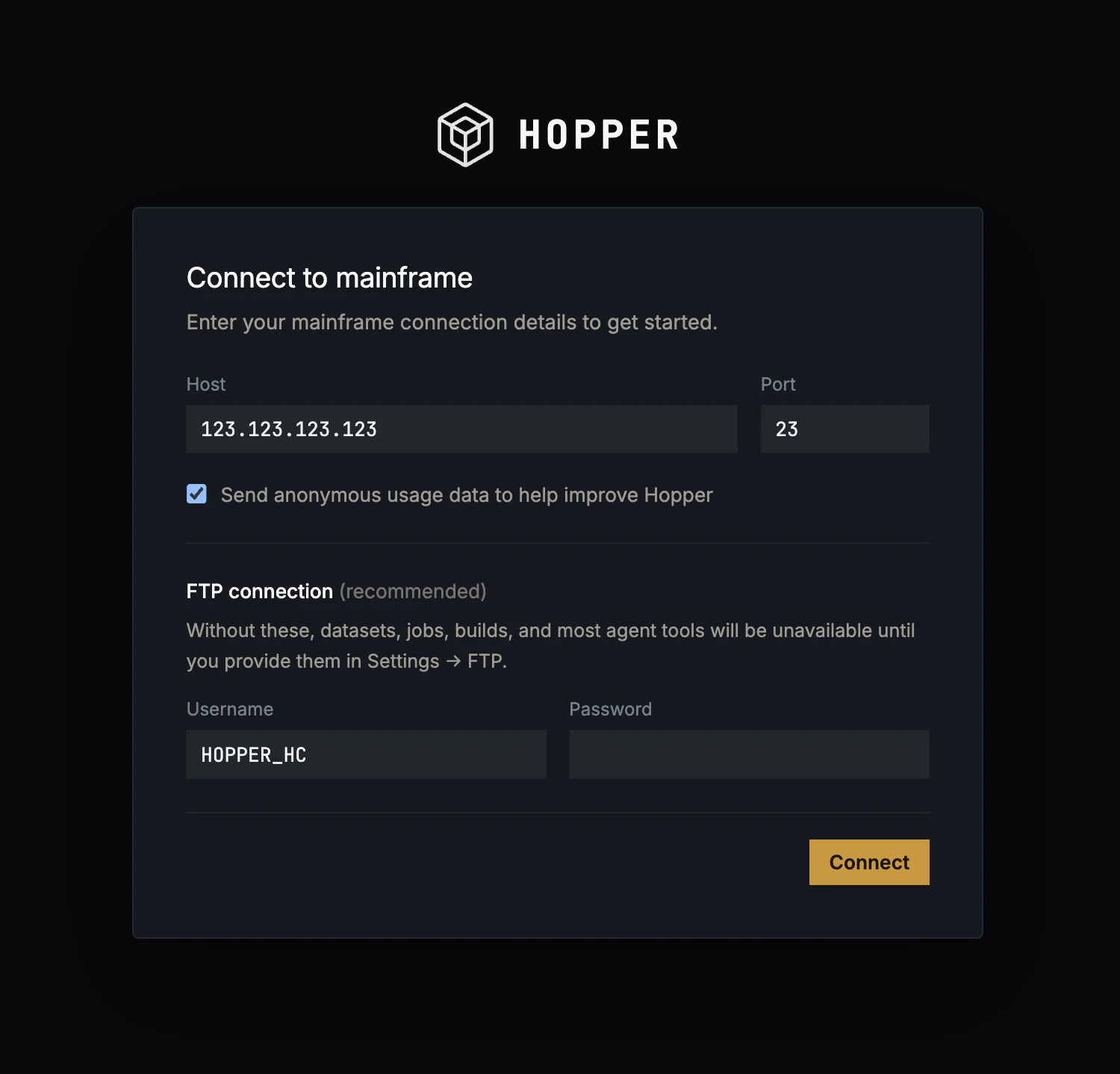
The FTP section is recommended but optional. Without FTP credentials, Hopper opens the TN3270 terminal so you can log on through the green-screen LOGON prompt, but the datasets browser, jobs browser, builds, and most agent tools stay disabled until you add credentials from Settings → FTP.
Step 3: Add an Anthropic API key
The chat agent runs on Claude. You bring your own key.1
Open the Anthropic console
Go to console.anthropic.com and sign up or sign in.
2
Create the key
Navigate to API Keys, create a key, and copy it. It starts with
sk-ant-.3
Paste it into Hopper
Click API Key in the left navigation, then Add API key. Give the key a label, paste the key, and click Save.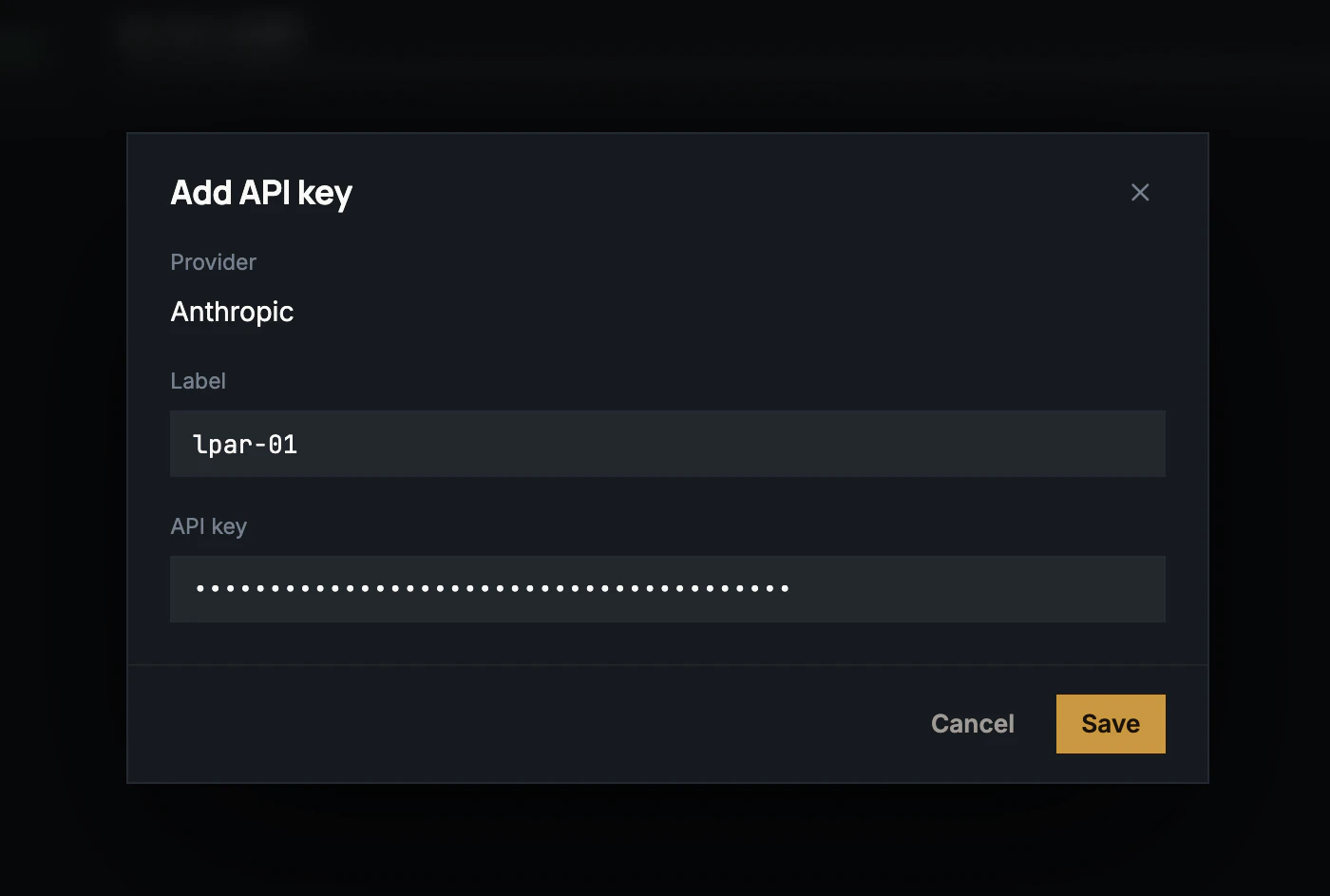
Step 4: Ask your first question
In the agent panel on the right, try a simple read against a real PDS:ACME01.SOURCE.COBOL with one of your own PDSes. The agent calls Read members, reads each member in parallel, and writes a one-sentence summary per program. You don’t have to know which tool to invoke; the agent picks.
A few more prompts to try:
Step 5: Make a change
OpenCBACT01C in the datasets panel preview, click the @ button to attach it as @ACME01.SOURCE.COBOL(CBACT01C), then ask:
Step 6: Compile and run
Ask the agent to build and execute:- Generates compile, link, and run JCL
- Submits the job
- Watches JES until it completes
- Pulls the SYSOUT spool and shows you the output
Pro tips
Be specific with dataset names
Be specific with dataset names
Instead of “the master file”, say
ACME01.DATA.MASTER. The agent will ask for clarification on ambiguous references, but explicit prompts run faster.Attach references with @
Attach references with @
Click the @ button in the dataset preview header or on a job row to attach a reference. The agent receives the resolved content with your next message.
Plan before you act
Plan before you act
For larger changes, ask the agent to outline the steps first (
don't change anything yet, just propose options), review the plan, then run each step as its own prompt.Troubleshooting
Connection times out
Connection times out
Confirm you can reach the host:
nc -v mainframe.example.com 23 for TN3270, nc -v mainframe.example.com 21 for FTP. Check your VPN or jump host.530 Login incorrect
530 Login incorrect
Credentials reached the host but were rejected. Double-check the user ID’s case and verify the account isn’t locked.
macOS: 'Hopper can't be opened because Apple cannot check it for malicious software'
macOS: 'Hopper can't be opened because Apple cannot check it for malicious software'
You downloaded an unsigned development build. Re-download from the download page; official builds are signed and notarized.
Chat panel says 'no API key'
Chat panel says 'no API key'
Open API Key in the left nav and paste an Anthropic API key (starts with
sk-ant-). It’s stored in your OS keychain. Hopper never sends it to anything other than api.anthropic.com.What’s next?
How Hopper works
The mental model: terminal, datasets, jobs, and the agent loop.
The AI agent
Turns, tool calls, history, and approvals.
Tools
What the agent can do, and how Hopper keeps you in control.