

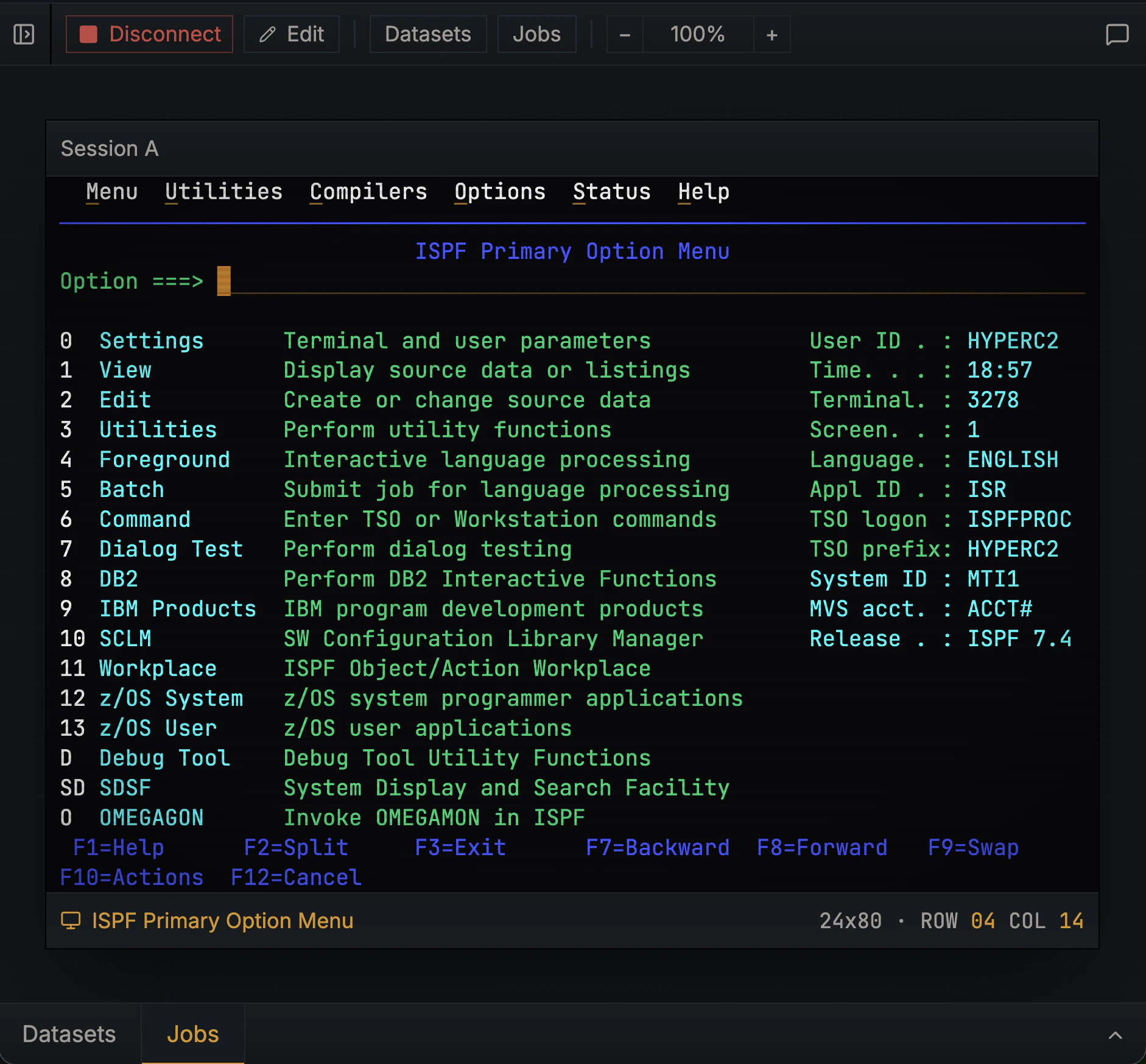
What TN3270 is
TN3270 (Telnet 3270) is a block-mode terminal protocol. Modern terminals like xterm or Windows Console are character-mode: every keystroke goes straight to the host. TN3270 works differently. The mainframe sends a full screen at a time, you fill in fields locally, and only an Attention Identifier (AID) key (Enter, PF1–24, PA1–3, Clear) sends anything back. This makes TN3270:- Efficient. A single screen update can move dozens of fields. Round-trips are minimized.
- Stateful. The screen is the conversation. Previous text on screen is part of the current state.
- Form-like. Most mainframe applications are screens of labelled fields, not character-by-character interaction.
What you see in the panel
Hopper renders the 24×80 character grid as it actually appears on the host:- Protected fields: labels and read-only text. You can’t type into them.
- Unprotected fields: input areas. The cursor lives in these.
- Hidden fields: usually password inputs. Hopper masks them at every layer; they never appear in logs or chat history.
- Color and intensity: most mainframes use four colors (green, white, red, blue) plus high/low intensity. Hopper preserves both.
- Click any cell to position the cursor
- Type into unprotected fields
- Use Tab / Shift-Tab to move between fields
- Send AID keys from the keyboard: F1–F24 map to PF1–PF24, Escape sends Clear, Enter submits
AID keys cheat sheet
Anything not on this list is local. Typing characters or moving the cursor doesn’t reach the mainframe; it only ships when you hit an AID key.
Screen analysis (optional)
If you’ve configured an API key, Hopper labels each screen automatically. The label tells you whether you’re in TSO, ISPF, CICS, JES, or some other context, and what each field is for. You’ll see this as:- A status pill on the terminal header (
ISPF Edit,CICS Signon,JES2 Spool) - Hover labels on fields when you tab through them
- The chat agent already knows what screen you’re on, so prompts like “what does this screen do?” work without re-explaining
Hidden fields and security
z/OS terminals frequently have hidden fields: input areas where typed characters aren’t displayed (passwords being the obvious example).- Hidden-field content is never logged, stored in chat history, or sent to Anthropic.
- The agent and screen analyzer see bullets (
•), one per typed character, instead of the actual value.
Where to read next
Datasets and jobs
How the mainframe stores files and runs batch work.
The AI agent
How the chat agent uses the terminal session you opened.