> ## Documentation Index
> Fetch the complete documentation index at: https://docs.hypercubic.ai/llms.txt
> Use this file to discover all available pages before exploring further.
# Quick start
> Install Hopper, connect to your mainframe, and run your first AI-driven task. About fifteen minutes end to end.
By the end of this quickstart, you'll have read source from a PDS, modified a COBOL program, compiled it, and reviewed the spool. All from chat.
## Before you begin
Make sure you have:
* A z/OS mainframe reachable from your laptop. **TN3270** is required; **FTP** is optional but recommended — without it, the datasets browser, jobs browser, builds, and most agent tools stay disabled.
* A **TSO user ID and password** for FTP, if you're using it. You can also add this later from **Settings → FTP**.
* An **Anthropic API key** ([get one](https://platform.claude.com/settings/workspaces/default/keys))
## Step 1: Install Hopper
Download Hopper from the [download page](https://hypercubic.ai/hopper), run the installer, and launch the app.
## Step 2: Connect to your mainframe
The connection modal opens automatically on first launch.
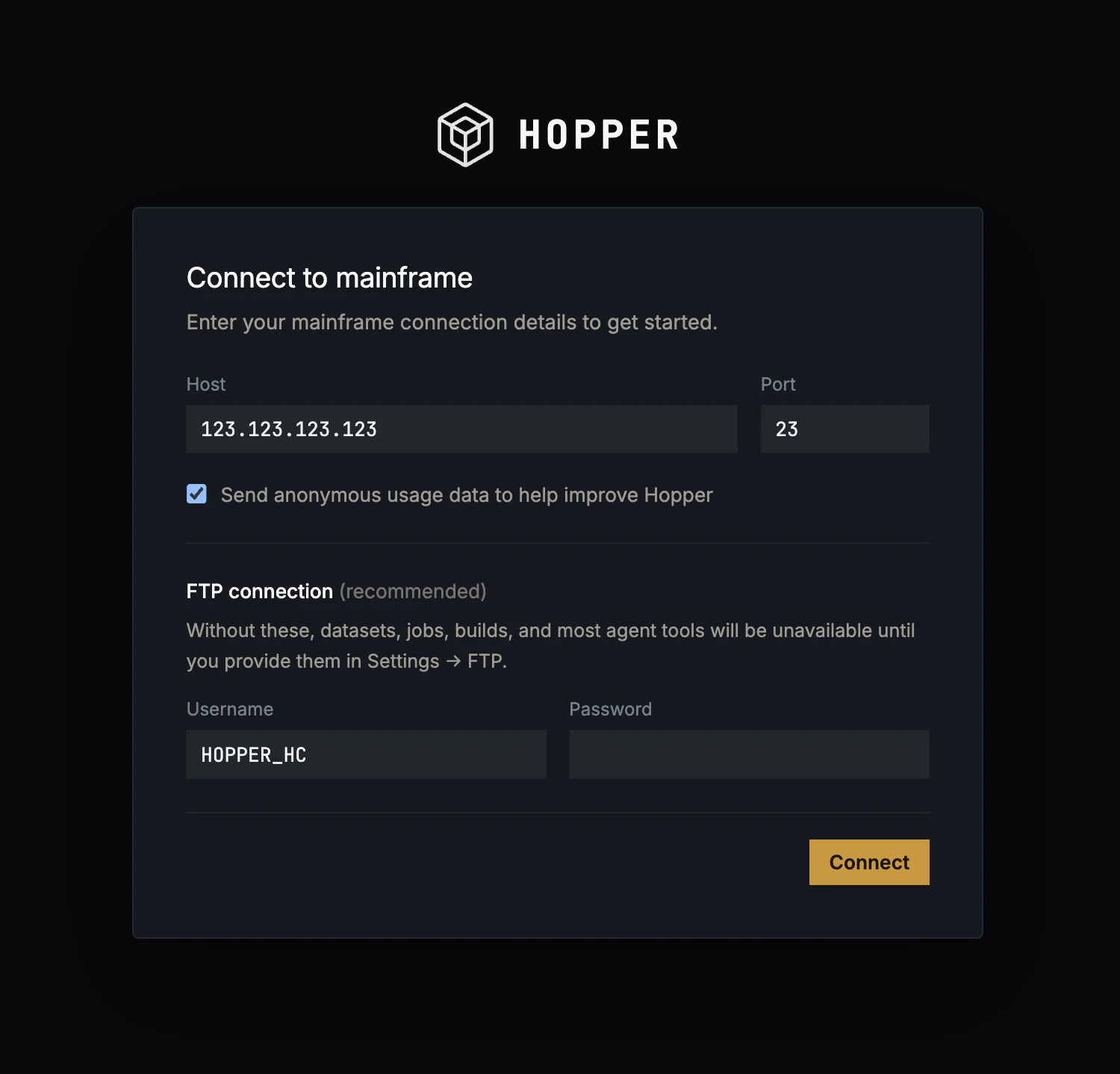 Enter the **TN3270** host and port. Optionally add **FTP** credentials, then click **Connect**.
| Field | Required | Notes |
| ------------ | -------- | ------------------------------------------ |
| **Host** | Yes | IP address or hostname of your z/OS system |
| **Port** | Yes | TN3270 port. `23` is the default |
| **Username** | No | TSO user ID, used for FTP |
| **Password** | No | TSO password, used for FTP |
The FTP section is recommended but optional. Without FTP credentials, Hopper opens the TN3270 terminal so you can log on through the green-screen LOGON prompt, but the datasets browser, jobs browser, builds, and most agent tools stay disabled until you add credentials from **Settings → FTP**.
## Step 3: Add an Anthropic API key
The chat agent runs on Claude. You bring your own key.
Go to [console.anthropic.com](https://console.anthropic.com/) and sign up or sign in.
Navigate to **API Keys**, create a key, and copy it. It starts with `sk-ant-`.
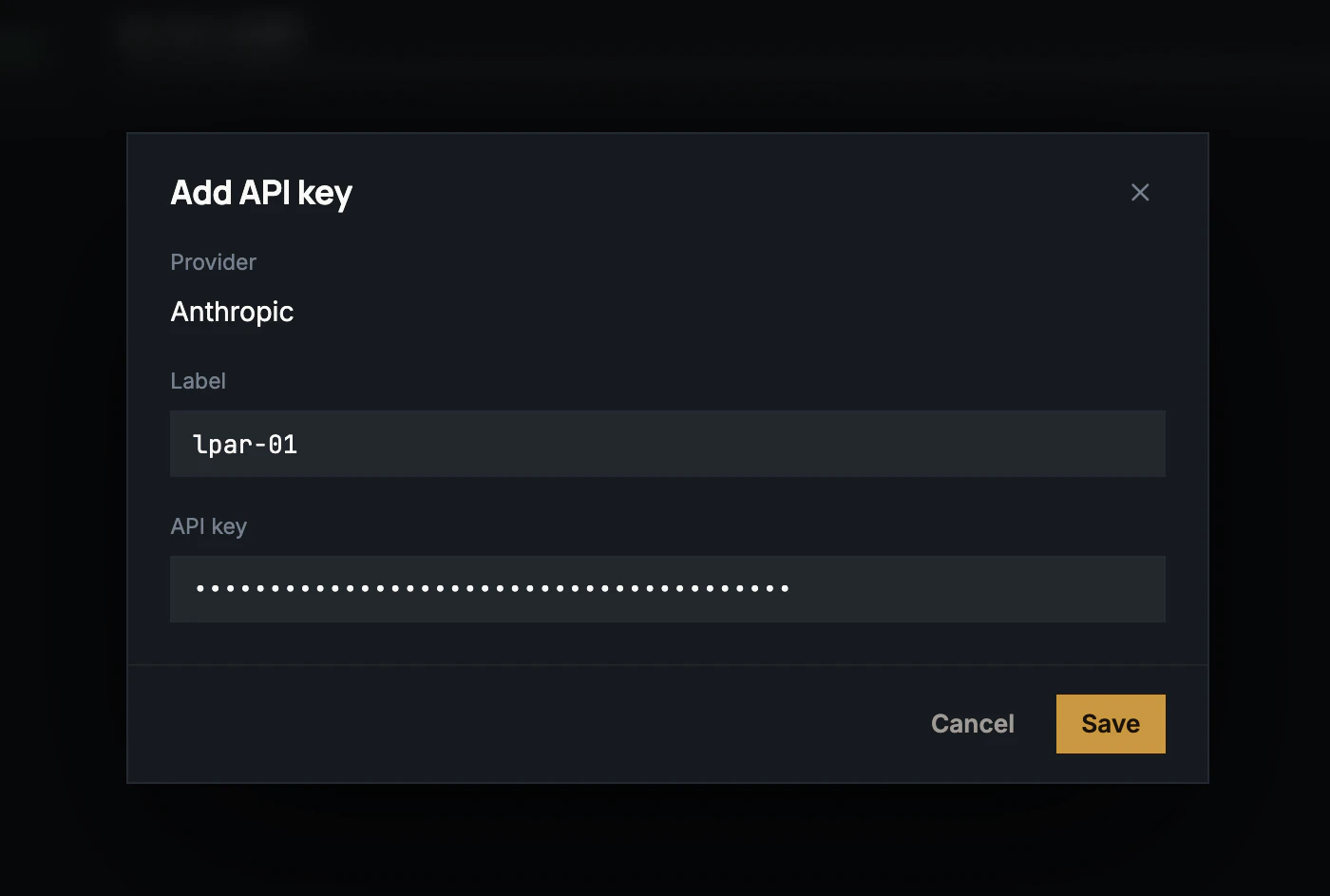
Click **API Key** in the left navigation, then **Add API key**. Give the key a label, paste the key, and click **Save**.
Enter the **TN3270** host and port. Optionally add **FTP** credentials, then click **Connect**.
| Field | Required | Notes |
| ------------ | -------- | ------------------------------------------ |
| **Host** | Yes | IP address or hostname of your z/OS system |
| **Port** | Yes | TN3270 port. `23` is the default |
| **Username** | No | TSO user ID, used for FTP |
| **Password** | No | TSO password, used for FTP |
The FTP section is recommended but optional. Without FTP credentials, Hopper opens the TN3270 terminal so you can log on through the green-screen LOGON prompt, but the datasets browser, jobs browser, builds, and most agent tools stay disabled until you add credentials from **Settings → FTP**.
## Step 3: Add an Anthropic API key
The chat agent runs on Claude. You bring your own key.
Go to [console.anthropic.com](https://console.anthropic.com/) and sign up or sign in.
Navigate to **API Keys**, create a key, and copy it. It starts with `sk-ant-`.
Click **API Key** in the left navigation, then **Add API key**. Give the key a label, paste the key, and click **Save**.
 ## Step 4: Ask your first question
In the agent panel on the right, try a simple read against a real PDS:
```text theme={null}
What's in ACME01.SOURCE.COBOL? Summarize each program in one sentence.
```
Replace `ACME01.SOURCE.COBOL` with one of your own PDSes. The agent calls **Read members**, reads each member in parallel, and writes a one-sentence summary per program. You don't have to know which tool to invoke; the agent picks.
A few more prompts to try:
```text theme={null}
Walk me through @ACME01.SOURCE.COBOL(CBACT01C) paragraph by paragraph.
```
```text theme={null}
Which programs are entry points? Which are internal utilities?
```
```text theme={null}
Map the data flow around BILLPROC.
```
## Step 5: Make a change
Open `CBACT01C` in the datasets panel preview, click the **@** button to attach it as `@ACME01.SOURCE.COBOL(CBACT01C)`, then ask:
```text theme={null}
In CBACT01C, add a paragraph that prints the total record count to SYSOUT before the program ends.
```
The agent re-reads the source, drafts the change in chat, and pauses for approval before writing. Approve to write, or reject and tell the agent what to change. See [Tools](/core-concepts/tools) for the full safety model.
## Step 6: Compile and run
Ask the agent to build and execute:
```text theme={null}
Compile and run CBACT01C against ACME01.DATA.MASTER. Show me the SYSOUT.
```
The agent:
1. Generates compile, link, and run JCL
2. Submits the job
3. Watches JES until it completes
4. Pulls the SYSOUT spool and shows you the output
If the compile fails, the agent classifies the error (JCL error, compile error, or abend), pulls the offending line, and proposes a fix in the same chat thread.
## Pro tips
Instead of "the master file", say `ACME01.DATA.MASTER`. The agent will ask for clarification on ambiguous references, but explicit prompts run faster.
Click the **@** button in the dataset preview header or on a job row to attach a reference. The agent receives the resolved content with your next message.
For larger changes, ask the agent to outline the steps first (`don't change anything yet, just propose options`), review the plan, then run each step as its own prompt.
## Troubleshooting
Confirm you can reach the host: `nc -v mainframe.example.com 23` for TN3270, `nc -v mainframe.example.com 21` for FTP. Check your VPN or jump host.
Credentials reached the host but were rejected. Double-check the user ID's case and verify the account isn't locked.
You downloaded an unsigned development build. Re-download from the [download page](https://hypercubic.ai/hopper); official builds are signed and notarized.
Open **API Key** in the left nav and paste an Anthropic API key (starts with `sk-ant-`). It's stored in your OS keychain. Hopper never sends it to anything other than `api.anthropic.com`.
## What's next?
The mental model: terminal, datasets, jobs, and the agent loop.
Turns, tool calls, history, and approvals.
What the agent can do, and how Hopper keeps you in control.
## Step 4: Ask your first question
In the agent panel on the right, try a simple read against a real PDS:
```text theme={null}
What's in ACME01.SOURCE.COBOL? Summarize each program in one sentence.
```
Replace `ACME01.SOURCE.COBOL` with one of your own PDSes. The agent calls **Read members**, reads each member in parallel, and writes a one-sentence summary per program. You don't have to know which tool to invoke; the agent picks.
A few more prompts to try:
```text theme={null}
Walk me through @ACME01.SOURCE.COBOL(CBACT01C) paragraph by paragraph.
```
```text theme={null}
Which programs are entry points? Which are internal utilities?
```
```text theme={null}
Map the data flow around BILLPROC.
```
## Step 5: Make a change
Open `CBACT01C` in the datasets panel preview, click the **@** button to attach it as `@ACME01.SOURCE.COBOL(CBACT01C)`, then ask:
```text theme={null}
In CBACT01C, add a paragraph that prints the total record count to SYSOUT before the program ends.
```
The agent re-reads the source, drafts the change in chat, and pauses for approval before writing. Approve to write, or reject and tell the agent what to change. See [Tools](/core-concepts/tools) for the full safety model.
## Step 6: Compile and run
Ask the agent to build and execute:
```text theme={null}
Compile and run CBACT01C against ACME01.DATA.MASTER. Show me the SYSOUT.
```
The agent:
1. Generates compile, link, and run JCL
2. Submits the job
3. Watches JES until it completes
4. Pulls the SYSOUT spool and shows you the output
If the compile fails, the agent classifies the error (JCL error, compile error, or abend), pulls the offending line, and proposes a fix in the same chat thread.
## Pro tips
Instead of "the master file", say `ACME01.DATA.MASTER`. The agent will ask for clarification on ambiguous references, but explicit prompts run faster.
Click the **@** button in the dataset preview header or on a job row to attach a reference. The agent receives the resolved content with your next message.
For larger changes, ask the agent to outline the steps first (`don't change anything yet, just propose options`), review the plan, then run each step as its own prompt.
## Troubleshooting
Confirm you can reach the host: `nc -v mainframe.example.com 23` for TN3270, `nc -v mainframe.example.com 21` for FTP. Check your VPN or jump host.
Credentials reached the host but were rejected. Double-check the user ID's case and verify the account isn't locked.
You downloaded an unsigned development build. Re-download from the [download page](https://hypercubic.ai/hopper); official builds are signed and notarized.
Open **API Key** in the left nav and paste an Anthropic API key (starts with `sk-ant-`). It's stored in your OS keychain. Hopper never sends it to anything other than `api.anthropic.com`.
## What's next?
The mental model: terminal, datasets, jobs, and the agent loop.
Turns, tool calls, history, and approvals.
What the agent can do, and how Hopper keeps you in control.