> ## Documentation Index
> Fetch the complete documentation index at: https://docs.hypercubic.ai/llms.txt
> Use this file to discover all available pages before exploring further.
# The terminal
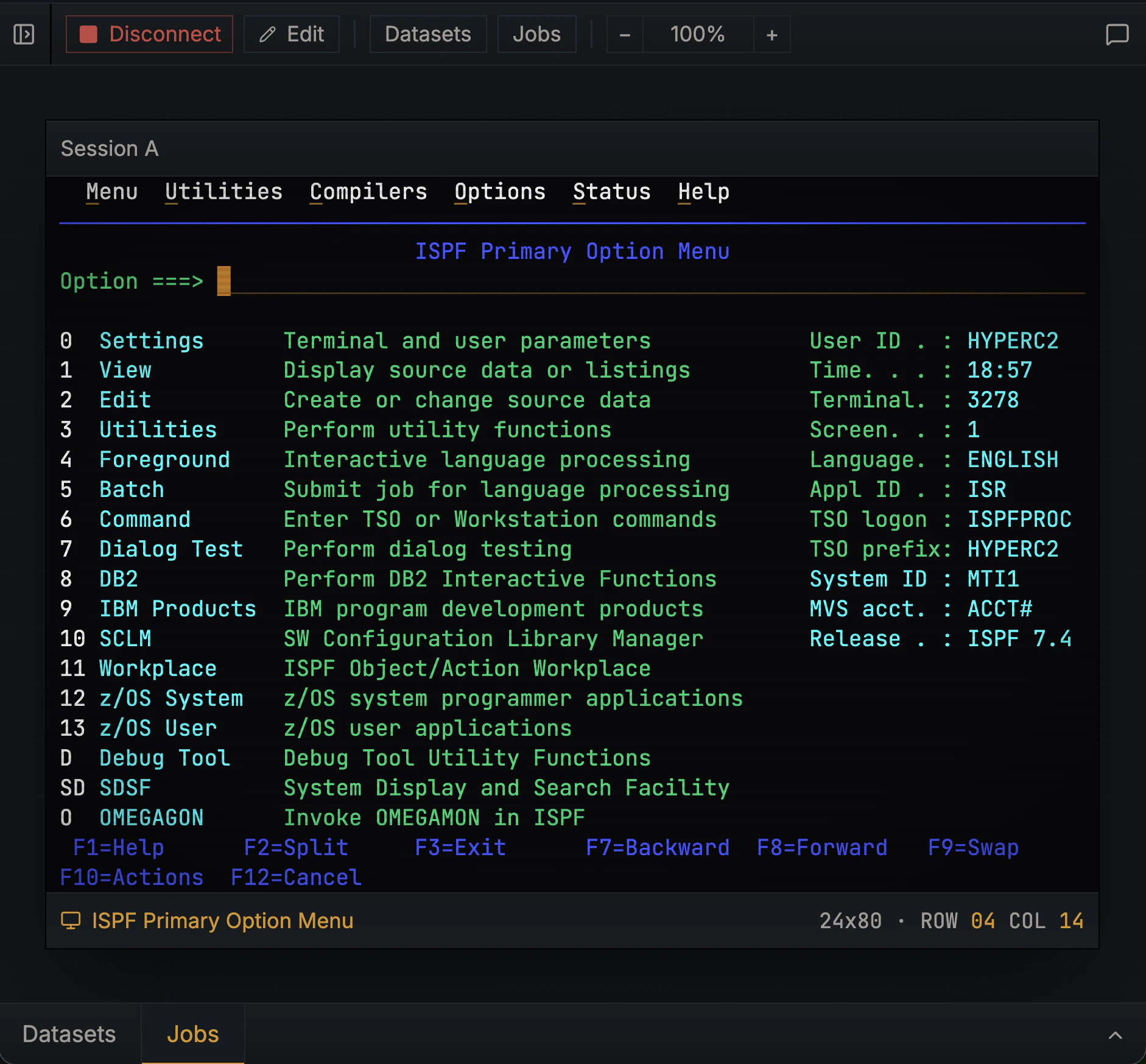
> The terminal panel in Hopper is a TN3270 emulator. It renders the same green-screen interface mainframe users have worked with since the 1970s.
 ## What TN3270 is
TN3270 (Telnet 3270) is a **block-mode** terminal protocol. Modern terminals like xterm or Windows Console are character-mode: every keystroke goes straight to the host. TN3270 works differently. The mainframe sends a full screen at a time, you fill in fields locally, and only an **Attention Identifier (AID) key** (Enter, PF1–24, PA1–3, Clear) sends anything back.
This makes TN3270:
* **Efficient.** A single screen update can move dozens of fields. Round-trips are minimized.
* **Stateful.** The screen is the conversation. Previous text on screen is part of the current state.
* **Form-like.** Most mainframe applications are screens of labelled fields, not character-by-character interaction.
## What you see in the panel
Hopper renders the 24×80 character grid as it actually appears on the host:
* **Protected fields:** labels and read-only text. You can't type into them.
* **Unprotected fields:** input areas. The cursor lives in these.
* **Hidden fields:** usually password inputs. Hopper masks them at every layer; they never appear in logs or chat history.
* **Color and intensity:** most mainframes use four colors (green, white, red, blue) plus high/low intensity. Hopper preserves both.
You can:
* Click any cell to position the cursor
* Type into unprotected fields
* Use Tab / Shift-Tab to move between fields
* Send AID keys from the keyboard: F1–F24 map to PF1–PF24, Escape sends Clear, Enter submits
## AID keys cheat sheet
| Key | What it does |
| ------------------- | --------------------------------------------------------------------------------------------------------- |
| **Enter** | Submit current screen state to the host |
| **PF1–PF24** | Application-specific function keys; common: PF1 = help, PF3 = exit, PF7/PF8 = page up/down, PF12 = cancel |
| **PA1–PA3** | "Program Attention" — usually used for system-level interrupts |
| **Clear** | Clear the screen and send an attention to the host |
| **Tab / Shift-Tab** | Move between unprotected fields (no host round-trip) |
Anything not on this list is local. Typing characters or moving the cursor doesn't reach the mainframe; it only ships when you hit an AID key.
## Screen analysis (optional)
If you've configured an [API key](/quickstart), Hopper labels each screen automatically. The label tells you whether you're in TSO, ISPF, CICS, JES, or some other context, and what each field is for.
You'll see this as:
* A status pill on the terminal header (`ISPF Edit`, `CICS Signon`, `JES2 Spool`)
* Hover labels on fields when you tab through them
* The chat agent already knows what screen you're on, so prompts like "what does this screen do?" work without re-explaining
Without an API key, the terminal still works; you just don't get the auto-labels.
## Hidden fields and security
z/OS terminals frequently have **hidden fields**: input areas where typed characters aren't displayed (passwords being the obvious example).
* Hidden-field content is never logged, stored in chat history, or sent to Anthropic.
* The agent and screen analyzer see bullets (`•`), one per typed character, instead of the actual value.
See [Security & privacy](/resources/security) for the full picture.
## Where to read next
How the mainframe stores files and runs batch work.
How the chat agent uses the terminal session you opened.
## What TN3270 is
TN3270 (Telnet 3270) is a **block-mode** terminal protocol. Modern terminals like xterm or Windows Console are character-mode: every keystroke goes straight to the host. TN3270 works differently. The mainframe sends a full screen at a time, you fill in fields locally, and only an **Attention Identifier (AID) key** (Enter, PF1–24, PA1–3, Clear) sends anything back.
This makes TN3270:
* **Efficient.** A single screen update can move dozens of fields. Round-trips are minimized.
* **Stateful.** The screen is the conversation. Previous text on screen is part of the current state.
* **Form-like.** Most mainframe applications are screens of labelled fields, not character-by-character interaction.
## What you see in the panel
Hopper renders the 24×80 character grid as it actually appears on the host:
* **Protected fields:** labels and read-only text. You can't type into them.
* **Unprotected fields:** input areas. The cursor lives in these.
* **Hidden fields:** usually password inputs. Hopper masks them at every layer; they never appear in logs or chat history.
* **Color and intensity:** most mainframes use four colors (green, white, red, blue) plus high/low intensity. Hopper preserves both.
You can:
* Click any cell to position the cursor
* Type into unprotected fields
* Use Tab / Shift-Tab to move between fields
* Send AID keys from the keyboard: F1–F24 map to PF1–PF24, Escape sends Clear, Enter submits
## AID keys cheat sheet
| Key | What it does |
| ------------------- | --------------------------------------------------------------------------------------------------------- |
| **Enter** | Submit current screen state to the host |
| **PF1–PF24** | Application-specific function keys; common: PF1 = help, PF3 = exit, PF7/PF8 = page up/down, PF12 = cancel |
| **PA1–PA3** | "Program Attention" — usually used for system-level interrupts |
| **Clear** | Clear the screen and send an attention to the host |
| **Tab / Shift-Tab** | Move between unprotected fields (no host round-trip) |
Anything not on this list is local. Typing characters or moving the cursor doesn't reach the mainframe; it only ships when you hit an AID key.
## Screen analysis (optional)
If you've configured an [API key](/quickstart), Hopper labels each screen automatically. The label tells you whether you're in TSO, ISPF, CICS, JES, or some other context, and what each field is for.
You'll see this as:
* A status pill on the terminal header (`ISPF Edit`, `CICS Signon`, `JES2 Spool`)
* Hover labels on fields when you tab through them
* The chat agent already knows what screen you're on, so prompts like "what does this screen do?" work without re-explaining
Without an API key, the terminal still works; you just don't get the auto-labels.
## Hidden fields and security
z/OS terminals frequently have **hidden fields**: input areas where typed characters aren't displayed (passwords being the obvious example).
* Hidden-field content is never logged, stored in chat history, or sent to Anthropic.
* The agent and screen analyzer see bullets (`•`), one per typed character, instead of the actual value.
See [Security & privacy](/resources/security) for the full picture.
## Where to read next
How the mainframe stores files and runs batch work.
How the chat agent uses the terminal session you opened.